Add your first product
Prepare a photo, a name and a selling price. You can save the product as a draft while you finish it.
Our example is sports shoes at 2,500 DA, with 20 pairs in stock. These are real French dashboard screenshots with demonstration values. French labels appear beside the English instructions.
🎬 Video — products end to end
1. Open the product form
Open Dashboard → Products → Add product, or open the form directly.
On a phone, scroll down to reach the images, stock and status sections.
2. Add a photo
In Product images (Images du produit), press the upload area and choose a photo from your device. Wait for its thumbnail.
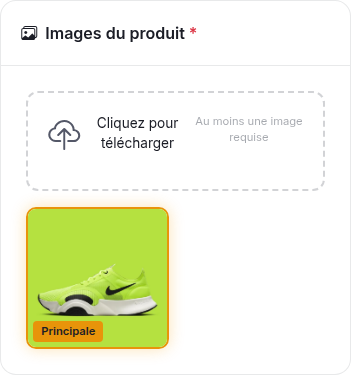
Check: your photo appears. The Primary (Principale) photo is used on the product card. Select another photo's star to make it the primary image.
3. Enter the name and description
In Product name (Nom du produit), enter a short name such as Sports shoes.
In Description, explain what the buyer will receive. Mention the material, sizes and anything they need to know before ordering.
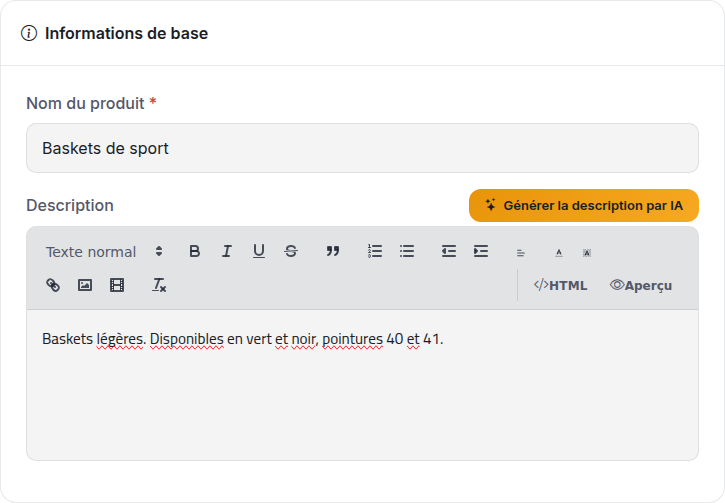
You can complete optional details later. The description generator is optional too.
4. Set the price and quantity
In Pricing & stock (Prix et stock):
- Enter 2500 in Price (Prix).
- Leave Compare price (Prix avant remise) empty if you are not showing a discount.
- Turn on Track stock (Suivi du stock).
- Enter 20 in Available quantity (Quantité disponible).
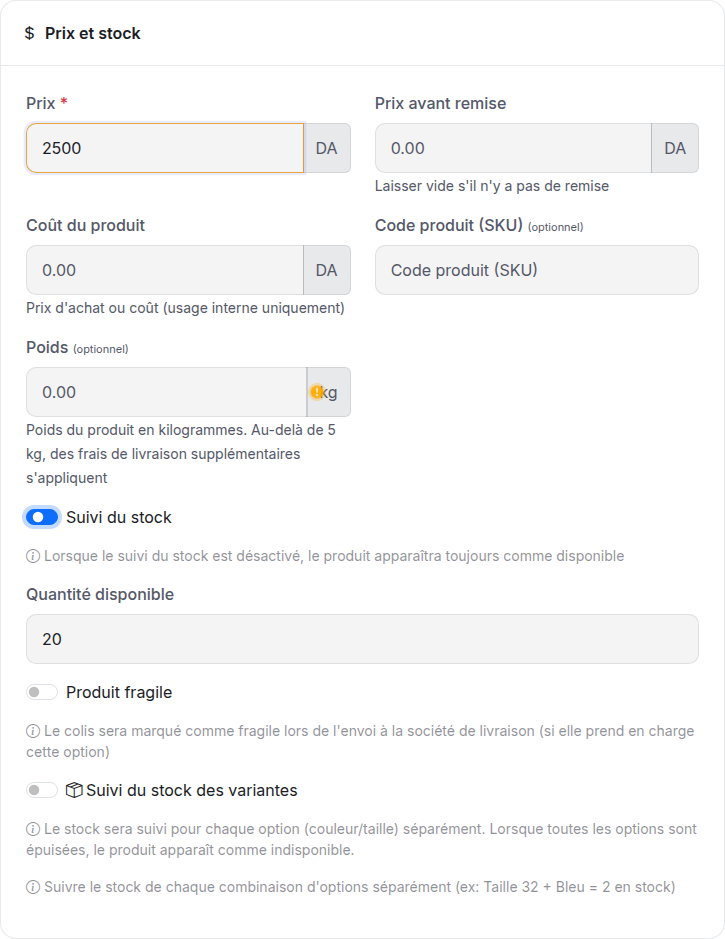
Check: the price is 2,500 DA and the quantity is 20. A compare price must be higher than the selling price. Cost is your purchase cost, not the amount the buyer pays.
Follow Variants and combinations next. Use combination stock if each colour and size has its own quantity.
5. Choose the status and save
In Category & status (Catégorie et statut), choose a category if you have one, then select the status:
| Status | Result |
|---|---|
| Draft (Brouillon) | Saved for you to finish. Shoppers cannot see it. |
| Active (Actif) | Listed in the store and available to buy. |
| Active but hidden (Actif mais masqué) | Buyable through its direct link, without appearing in store listings. |
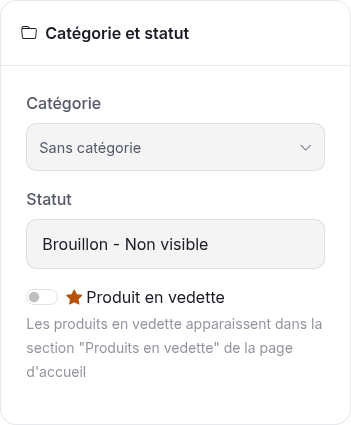
Choose Draft while you practise. Press Add product (Ajouter le produit) once and wait for the products list.
6. Check the saved product
Find the product in Products and open Edit. Check the name, photo, price and quantity.
When ready, change the status to Active and save. Use Preview in store to check what the buyer sees.
Finished: the product is saved with the correct photo and price. If you published it, its storefront page opens.
If you get stuck
| Problem | What to do |
|---|---|
| A photo is required | Choose a photo and wait for its thumbnail. |
| Compare-price error | Clear that field or enter a price higher than the selling price. |
| Stock quantity is disabled | Variant stock is on. Enter quantities in the options or combination table. |
| Product missing from the storefront | Check the Active status. Draft and hidden products do not appear in listings. |
| Save error | Keep the form open and correct the named field. If you are unsure whether it saved, check the products list before submitting again. |