Add variants and combinations
A group is a choice such as Colour or Size. An option is one value, such as Green or 40. A combination is one option from each group, such as Green + 40.
This tutorial continues the first product: sports shoes at 2,500 DA. It uses real French dashboard screenshots with demonstration values.
Video
1. Add the colour group
Open your product from Dashboard → Products → Edit and scroll to Variants (Variantes).
- Press Add group (Ajouter un groupe).
- Name the group Colour (Couleur in the example).
- Choose the Colour type before filling the options.
- Name the first option Green and choose its colour.
- Press Add option (Ajouter une option) and add Black.
The first option row appears automatically when you add a group.
2. Add the size group
- Press Add group again.
- Name it Size (Pointure in the example).
- Keep the Text type.
- Enter 40 in the first option.
- Press Add option and enter 41.
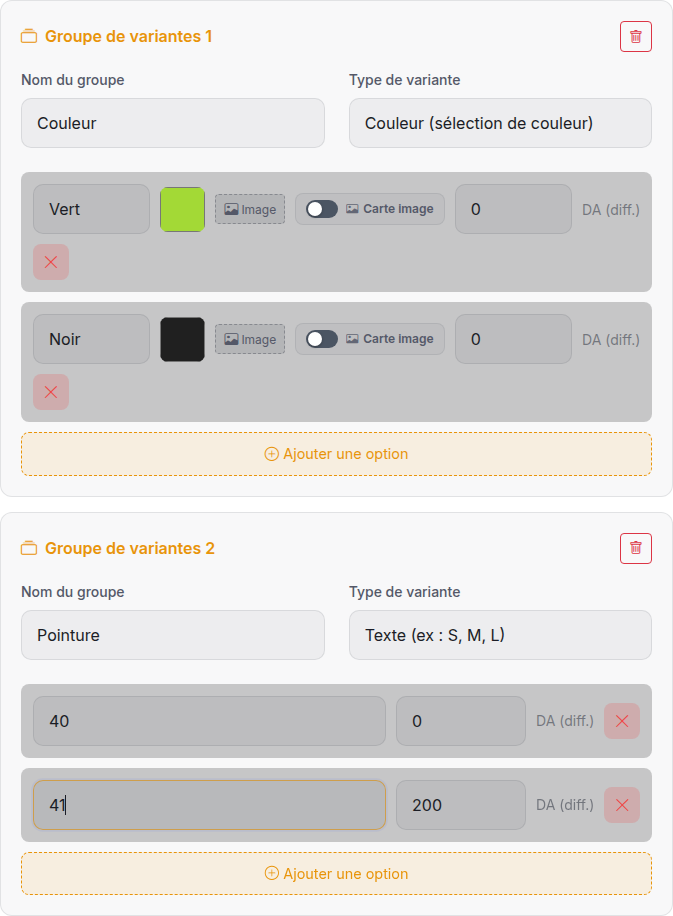
Check: there are two groups, each with two options. Your buyer will choose one colour and one size.
Changing a group's type can clear its option rows. Pick Colour or Text before entering the option names.
3. Set a price difference
Leave the option's price difference at 0 when it uses the product's normal price.
If size 41 costs 2,700 DA and the product price is 2,500 DA, enter 200 beside size 41. The screenshot above shows this example.
2,500 + 200 = 2,700 DA.
Do not enter 2700 as the difference. Price differences from selected options are added to the product price.
4. Choose how to count stock
| Your situation | Stock mode |
|---|---|
| You have one quantity for the whole product | Track stock (Suivi du stock) |
| You count each option separately, such as each size | Track variant stock (Suivi du stock des variantes) |
| You count each colour and size together | Track combination stock (Suivi du stock par combinaison) |
For option stock, turn on Track variant stock in Pricing & stock, then fill the stock beside each option. Leave combination stock off.
For our shoes, use combination stock: Green + 40 and Green + 41 have different quantities.
5. Create the combination table
With both groups filled in:
- In Pricing & stock, turn on Track variant stock.
- Turn on Track combination stock, which now appears.
- Scroll to Combination stock table (Tableau de stock des combinaisons).
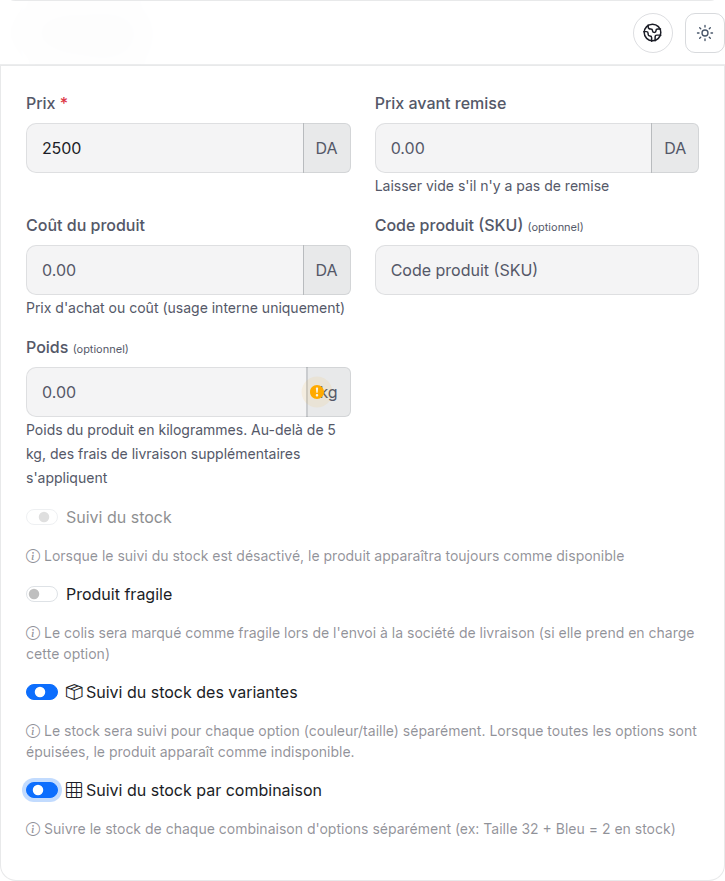
The table is generated when you enable the switch. Generate combinations (Générer les combinaisons) rebuilds it after you change the groups. Review every quantity after rebuilding.
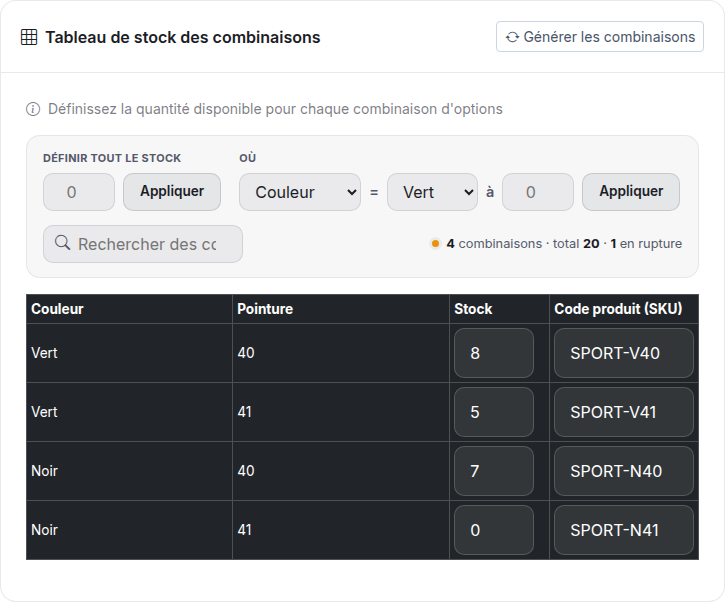
Enter the quantity you physically have for each pair:
| Colour | Size | Stock | Example SKU |
|---|---|---|---|
| Green | 40 | 8 | SPORT-V40 |
| Green | 41 | 5 | SPORT-V41 |
| Black | 40 | 7 | SPORT-N40 |
| Black | 41 | 0 | SPORT-N41 |
A SKU is your own reference code. Use a different code for each combination if you need to identify it quickly.
Check: two colours × two sizes gives four rows. Total stock is 20, and Black + 41 is sold out.
Zero, blank and the stock switches
- 0 means sold out. Use 0 for a combination you cannot sell.
- Do not leave quantities blank when you want a precise stock count. A blank option quantity can mean unlimited stock.
- With combination stock on, the per-option fields disappear and product stock is disabled. Edit the combination table instead.
- Newly generated rows start at 0. Fill them before saving.
Set several rows at once
Use Set all stock (Définir tout le stock) to give every row the same quantity. Enter the number and press Apply (Appliquer).
To update just one colour, use the condition controls, such as Colour = Green, enter the quantity and press their Apply button. These set the quantity of each matching row; they do not add units to its previous quantity.
Review the rows before saving, especially after a bulk change.
6. Save and check
Save the product. Reopen it and confirm the table still shows 8, 5, 7 and 0.
When the product is published, preview it in the store. Choose a colour and size, check the price, and check that the sold-out combination cannot be ordered.
For later deliveries, use Stock Management to update the right combination.
Other option types
| Type | Use it for |
|---|---|
| Colour | A colour swatch. |
| Text | Sizes, capacity or material names. |
| Image with text | An option shown with a picture and label. |
| Multiple choice | Optional extras where the buyer may select several options. |
Colour, Text and Image-with-text groups ask the buyer to choose one option. Multiple-choice groups are optional and do not appear in the combination table.
Link an option to a photo
Upload the product photos first. On a colour or image option, press Image, then choose the matching product photo.
For a colour option, Image card (Carte image) shows a larger card when a photo is linked. Image-with-text options already use cards.
On a carousel, selecting a linked option changes the displayed photo. In a stacked gallery, phones keep the buyer at the options instead of scrolling back up.
Arrange your photos
The primary photo stays first. Select another photo's star to change it. Reorder the other photos with drag-and-drop or the arrow buttons; on a phone, hold a thumbnail briefly before dragging.
If you get stuck
| Problem | What to check |
|---|---|
| Combination switch missing | Add two groups and turn on variant stock first. |
| Table is empty | Give the groups and their options names. Multiple-choice groups do not count toward the table. |
| Every combination is sold out | New rows start at 0. Enter your quantities and save. |
| Wrong price after selecting a size | Enter the price difference, not the final selling price. |
| One choice looks dimmed | It may be available with another choice. Select it, then choose the remaining option again if needed. |
| Too many combinations | Keep the table at 1,000 combinations or fewer. Reduce the number of options or split the product. |