Build an Online Store with AI in Algeria: DZBuild Copilot

You can now design your DZBuild store by describing what you want. Copilot is inside Customize: tell it what you sell, choose a visual direction, and ask it to adjust colours, text and home page sections using your existing store. This guide shows how to build your online store’s design with AI in Algeria, then review it on a phone and refine it without writing code.
Concept illustration. The tutorial screenshots below show the real assistant in a staging demonstration store.
The new Customize assistant launched on 8 October 2026. In the French dashboard, its button is Assistant IA; in Arabic, المساعد الذكي. You stay in the same editor you use to customise your storefront, with the preview beside it on a computer.
What Copilot can build in your storefront
Start with the parts a visitor sees: a readable title, a consistent palette, product categories in a useful order and a clear order button. The assistant can work on these through your store’s available design controls.
| Your request | What the assistant can adjust |
|---|---|
| “Use soft colours and a readable font.” | Supported colour, font and button settings. |
| “Make the home page easier to browse.” | Home page sections, category sections and their order, using your existing catalogue. |
| “Write a clearer opening headline.” | The main heading and other supported storefront text. |
| “Add answers to these questions.” | A home page FAQ section based on the facts you provide. |
Available options depend on your theme and subscription. Copilot follows those limits. It can also change supported store themes, order form styles and size/colour selector styles when you explicitly ask for them.
It understands your current design settings, products, categories and the example images you attach. Attached pictures can guide its choices; the assistant does not see your screen or a screenshot of the live preview. This panel does not generate new images.
Before you start
If you have not created a store yet, create your DZBuild account and follow the store setup guide. Add your real products, prices and images using the first-product tutorial. The assistant can use an existing catalogue to organise the design.
Have these ready:
- A short description of what you sell and who buys it.
- Your preferred colours, or an example image showing the style you want.
- Your real store language, logo and product photos, configured in their usual controls.
- Facts you want displayed, such as an actual delivery policy or an answer to a common buyer question.
Mention what you want to keep: the current theme, sections, or a particular colour.
1. Open the right store and the assistant
Select the intended store in your dashboard. Open Personnaliser la boutique → Personnaliser in French, or تخصيص المتجر → تخصيص in Arabic. You can also open Customize directly.
On a computer, click Assistant IA / المساعد الذكي at the top of the settings column. On a phone, the shorter Assistant / المساعد button is in the bottom row. The assistant opens inside the editor.
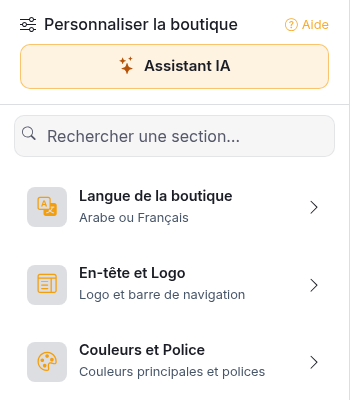
The French interface is shown in this English tutorial. The Arabic edition uses Arabic interface screenshots.
2. Describe the design you want
The first screen asks you to describe your store. You can type your own request or tap an example for perfumes and cosmetics, children’s clothing, or electronics. Tapping an example fills the text box; it does not send the request.
Here is a French request for a store with Arabic storefront text:
Je vends des vêtements pour enfants en Algérie. Je veux des couleurs douces, un texte arabe lisible et des boutons de commande visibles sur mobile. Garde mes catégories et mes sections actuelles.
The same request in Algerian Arabic:
عندي متجر ملابس أطفال في الجزائر. نحب ألوان هادئة، خط عربي واضح وأزرار طلب باينة في الهاتف. استعمل الفئات الموجودة عندي وخلي الأقسام الحالية.
You can talk to the assistant in Arabic, Algerian Darija or French. The storefront’s configured language guides the text it writes for customers, so check that setting before asking it to rewrite headings.
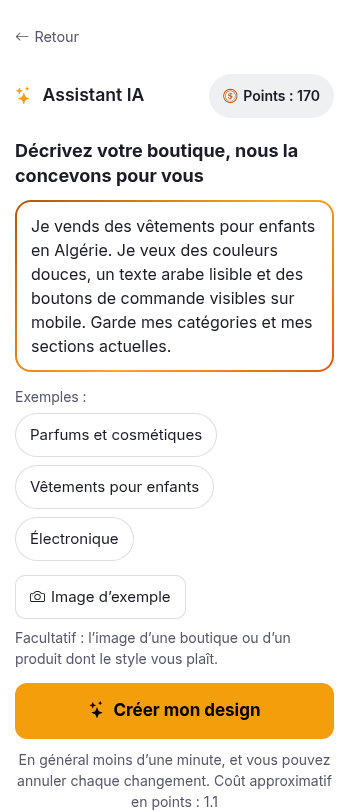
Example request before sending. No AI result is staged in this screenshot. The displayed points balance belongs to the demonstration session.
3. Add a reference image if it helps
Click Image d’exemple / صورة مثال to attach a product photo or a visual reference. The panel accepts up to 3 images. Use JPG or PNG images at least 200 pixels wide and tall, and under 8 MB each.
Explain what the image should communicate. For example:
Use this image as a colour reference. Keep my current theme and sections. Use warm beige with dark text, without copying the logo or wording in the reference.
A reference helps communicate a mood, palette or layout. It is not a command to clone another shop. If you want your own attached photo displayed in a new image section, say that explicitly. Use images you own or have permission to use, and keep actual product photos accurate.
4. Send the request and review the saved changes
Click Créer mon design / صمّم متجري for the first design. In an existing conversation, send your next request with Envoyer / أرسل.
The assistant applies saved design changes to your store. There is no separate approval or publication button after its answer. If you already have unsaved manual changes in Customize, the editor saves them before sending your request. If that save fails, the request does not start. Review those edits first.
Wait for the assistant to finish. It updates the preview; changes to sections or themes can reload the editor. Open the Ce qui a changé / ما تغيّر list to see the groups it changed, then inspect the result. Visitors can see the saved changes as storefront caches refresh.
If a result is not what you wanted, use Annuler / تراجع beside a change in the latest list. Only that latest list has Undo buttons. Review it before starting a new conversation, which clears access to the previous list. If the home page layout has changed since the edit, Undo can be refused; describe the layout you want or use the normal editor controls instead.
The general Reset button is not the assistant’s Undo. Use the Undo control next to the specific change you want to reverse.
5. Check the phone view and the order path
Use the preview toolbar’s computer, tablet and phone buttons. Switch between the home page, product page and checkout views. On a phone, Voir le changement / شاهد التغيير opens the preview after a change.

A real preview control, with the phone option selected. It lets you inspect the same store at different screen sizes.
Read the store like a buyer:
- Does the opening heading explain what you sell without covering the photo?
- Is Arabic readable, and are French words or product names laid out correctly?
- Does the order button stand out against its background?
- Are the categories useful, and are the product pictures recognisable on a phone?
- Are delivery claims, prices and customer-facing answers accurate?
Use Voir la boutique / عرض المتجر to inspect the public storefront and follow the important links. A preview checks design; it does not prove that your payment and delivery configuration is ready. Refer to the customization guide for the manual controls.
6. Refine one thing at a time
After the first design, stay in the conversation and ask for a specific adjustment. You can continue with the normal Customize controls too; save any later manual edits in the usual way.
Make the main button easier to read:
Set the main colour to dark blue and use white button text. Keep the rest of the palette unchanged.
Improve the order of existing content:
Put my existing category sections before the FAQ. Keep all current sections and their text.
Add a factual FAQ:
Add an FAQ with this question and answer: “How do I order?” “Choose a product, select the available options and fill in the order form.” Do not add delivery times or exchange conditions that I have not provided.
These are sample requests to adapt to your store. Check the assistant’s reply and the actual result after each request; a clear brief still needs a merchant’s review.
Points, plans and what you still manage
The assistant uses Copilot points. Its panel shows your balance and an approximate request cost. The actual cost varies with the work, and the balance shown in the screenshot belongs to the demonstration account. Read the Copilot points guide and current subscription plans for your account’s options.
If the panel asks you to add points, follow its prompt. Some accounts first need to open Copilot to activate the points wallet. There is no need to create API keys to use the embedded designer.
Keep managing your products, prices, stock, orders, delivery rates and courier connections in their dedicated dashboard pages. This assistant uses your catalogue to design the storefront; it does not configure those business settings for you. Set your store name, logo and language through their normal controls. For the broader launch sequence, use the online-store guide for Algeria.
Questions about building a store with AI
Do I need coding or design experience?
You can make supported design changes by describing them in the assistant. Start with what you sell, a colour direction and one priority. The preview and normal Customize controls remain available to inspect and adjust the result.
Can I use a picture of a style I like?
Yes. Attach it as an example and describe what you like about its colours or layout. The assistant understands the reference; this panel does not generate product photos or promise an exact copy of another website.
Do I need to press Save after Copilot finishes?
Its changes are already saved. Review the latest change list and the storefront, and use Undo or a follow-up request if necessary. Later manual changes still use the editor’s Save button.
Is this the same as the AI landing-page generator?
No. This tutorial covers your storefront design inside Customize. A separate landing page has its own workflow. The design assistant documentation explains this panel, and the landing-page guide covers that separate surface.
Open Customize and describe your store. If you are starting from scratch, create your DZBuild account, add your first products, and bring your design brief into the editor.