AI Product Photos in Algeria: ChatGPT, Gemini, Canva or Photoroom?

For an Algerian online store, start with a photo of the actual product. Use ChatGPT or Gemini when you want to describe an edit in conversation, Photoroom for a dedicated product-background workflow, and Canva when the photo needs to become an advertising layout. Choose the result by how faithfully it shows what you will deliver.
A brighter image is easy to like. An extra pocket, a changed shade or an accessory you do not include is easy to miss. With payment on delivery, that difference can become the buyer's first complaint when the parcel arrives.
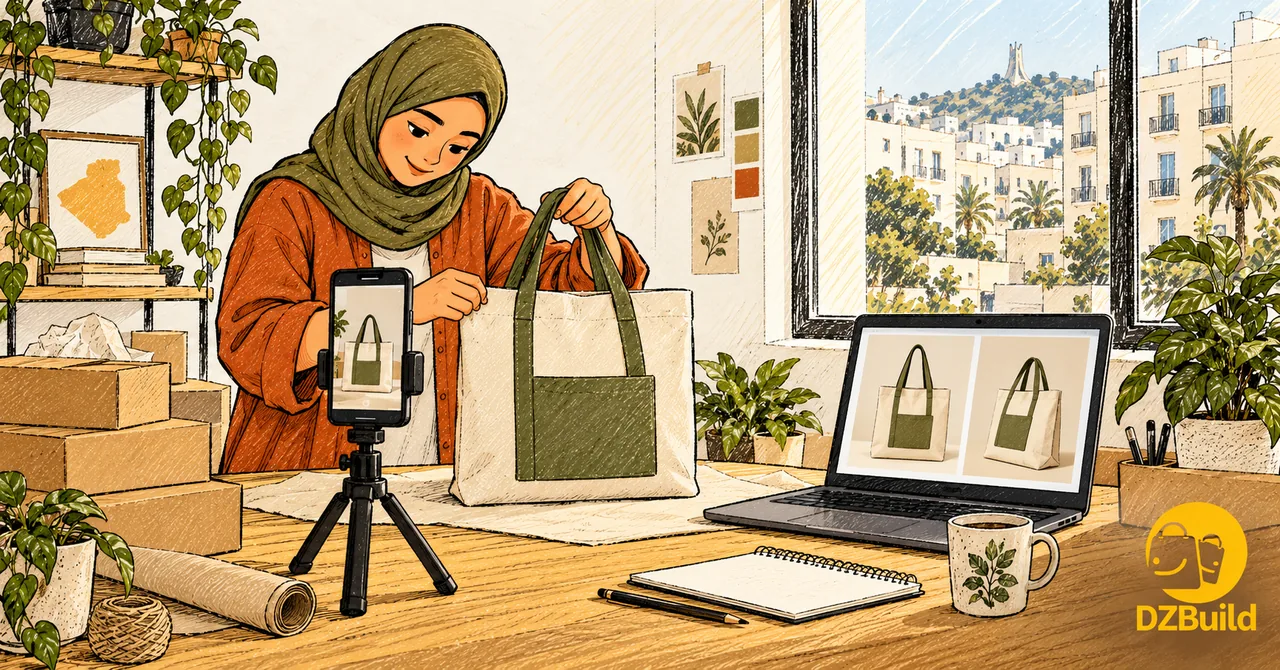
The illustrations explain the workflow. They are not screenshots or a side-by-side benchmark of these tools.
Which AI tool fits your product photos?
The table compares documented functions and suggested uses, checked on 10 October 2026. It is a workflow comparison, not a ranking of image quality.
| Tool | When to use it | What to check |
|---|---|---|
| ChatGPT Images | Upload your product photo and describe a change; refine it through conversation or a selected area. | Inspect the whole product after each edit. OpenAI warns that changes can extend beyond the selected area. |
| Gemini | Edit an uploaded photo, or combine several reference images when that feature is available in your account. | Check which reference supplied each detail. A second angle must not introduce another model or colour. |
| Photoroom | Upload a product image and choose or describe an AI background in a dedicated photo workflow. | Check cutout edges, contact shadows and product details. AI Backgrounds requires credits. |
| Canva | Generate a background around an uploaded photo, then arrange separate text and design elements for an advert. | Keep price and delivery text editable. Prepare a clean product-image export separately. |
Sources: OpenAI image editing, Gemini image generation and editing, Photoroom AI Backgrounds, and Canva background generation.
Start with the tool you already have. For a single bag on a plain background, opening four subscriptions adds little to the decision. If you prepare many catalogue images, compare time spent correcting edges and matching framing. If you need a French or Arabic ad, a layout editor gives you direct control over the words.
Can you do this for free? OpenAI lists ChatGPT Images on all tiers, with free usage subject to limits. Check the exact edit, export quality and remaining allowance in your account before preparing a catalogue. Other tools have their own feature and credit rules; a free preview does not establish an unlimited workflow.
Decide what the image must prove
Before writing a prompt, give each picture a job.
Your main image should show the exact item and variant. A detail photo should show a real seam, connector or label. A lifestyle image can explain where the object fits, but should not imply a size or included accessory that you have not verified.
For a hypothetical canvas tote with olive handles and one front pocket, write down:
- The actual colour of the fabric and handles.
- The pocket count, fastening and handle attachment.
- The measurements you took from the sample.
- Everything included in the parcel.
That short product record is your reference during editing. The example is a teaching exercise, not a merchant case study or a claim about sales.
Photograph the front, back and important detail in the same light. If you need a better starting shot, use the phone product-photography guide. A blurry label or hidden fastening needs another photograph; a generated replacement would invent information.
Three prompts you can adapt
Attach your own product photo, or one you have permission to use. Remove private order labels and customer details before uploading it. These prompts specify the intended edit; they do not guarantee that the model preserves every detail.
The full instructions suit conversational editors such as ChatGPT and Gemini. In Canva BG Generator or Photoroom AI Backgrounds, select the product photo first, then use only the scene description in the background prompt. Canva recommends describing the background rather than the subject. Keep the product checks separate.
1. A clean main product image
Edit the attached photograph of my actual product. Replace only the background with a plain warm-white studio background and a soft, plausible contact shadow. Keep the product's shape, proportions, colour, texture, stitching, label and included parts unchanged. Keep the original viewing angle. Do not add objects, accessories, text, logos or packaging. Leave space around the whole product, without cropping its handles or edges.
Compare the output with the original before asking for another version. If the tool keeps rebuilding the product, switch to a cutout of the original photograph placed on a plain background. Inspect the cutout too, especially handles, transparent parts and fine edges.
2. A restrained lifestyle image
Use the attached product photo as the reference. Place the product on a simple wooden table beside a softly lit cream wall. Preserve the original product and camera angle. Add no objects touching, covering or appearing to come with it. Do not change its material, colour, dimensions, openings or parts. Keep the background quiet and the full product visible.
An image of a bag holding a laptop implies capacity. Use a real photograph to demonstrate that fit. Similarly, do not ask a model to invent the inside of a closed bag or the unseen back of a device.
3. A background for an Arabic or French advert
Create a simple background around the attached product photo, with clear empty space above it for a headline I will add separately. Keep the product exactly as photographed. Use soft daylight, a cream background and a subtle olive accent away from the product. Do not generate any words, prices, badges or additional accessories.
Add your headline and price in the editor afterwards. For an Algerian offer, check the DZD amount, the delivery condition and the right-to-left order of Arabic words. A graphic that says delivery is included must match the checkout conditions.
A review sheet for accepting or rejecting an image
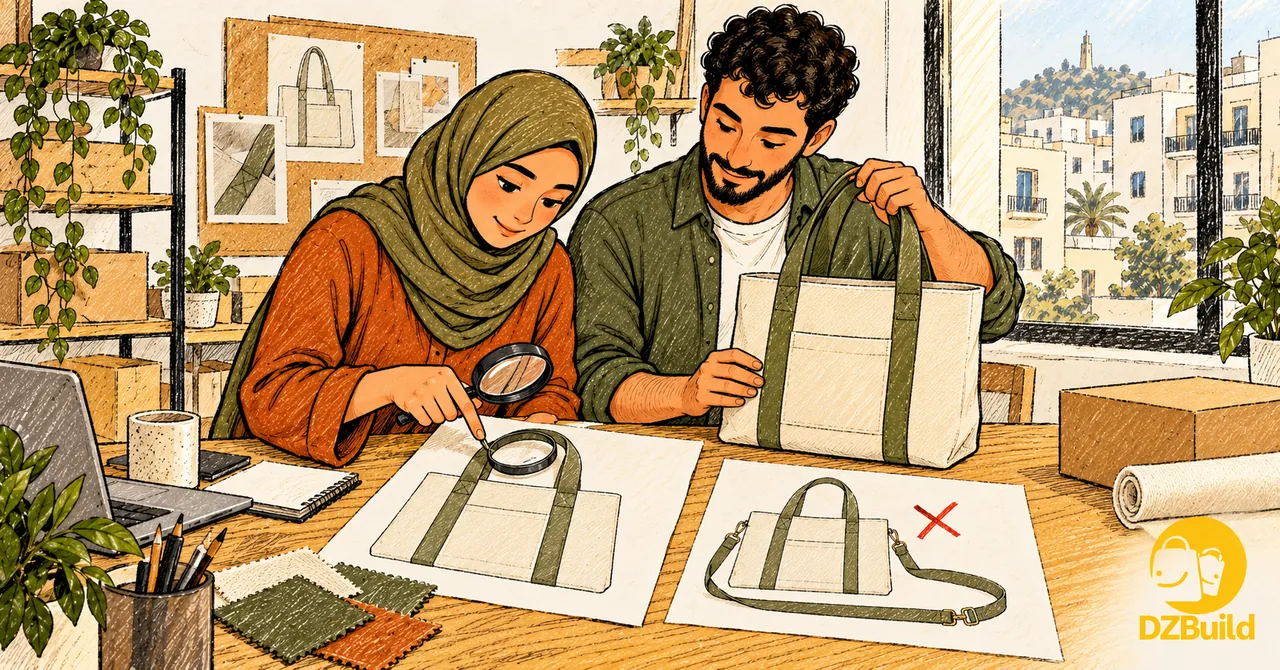
Open the original and the edited image beside each other. Zoom into details, then view the result at the size a buyer will see on a phone. Keep the physical sample within reach.
| Check | Reject the image if… |
|---|---|
| Shape and parts | A pocket, button, handle, port or fastening appears, disappears or moves. |
| Colour and material | Olive becomes black, matte plastic becomes metal, or ordinary fabric looks like leather. |
| Label and packaging | Letters, brand marks, quantities or package contents change. |
| Scale and use | The scene suggests an unverified capacity, size or function. |
| Edges and shadows | A handle merges into the background, a transparent part disappears, or the object floats. |
| Offer consistency | The image shows another variant, a set instead of one item, or an accessory absent from the parcel. |
One wrong product detail is enough to reject the image. Do not average it away because the lighting looks good. Return to the original photo and request a narrower edit, or keep the ungenerated product cutout.
For a fair comparison between tools, give each the same source photo, brief, target shape and maximum number of attempts. Save every output. Record the time spent, rejected details and usable exports. Your decision should come from usable images of your products, not a beautiful example of somebody else's product.
A blank record can be this simple: tool → source photo → requested edit → attempts → detail errors → accepted image → minutes spent. No star rating is needed.
Turn accepted images into a product gallery
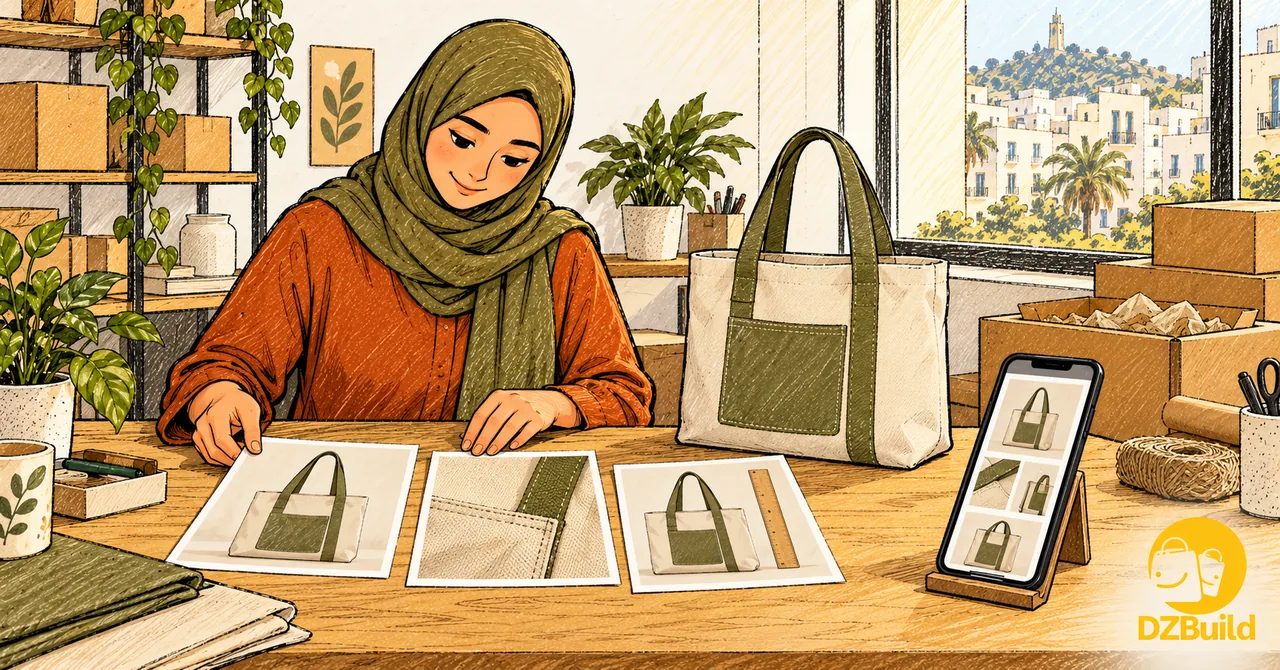
For the tote example, a useful sequence is:
- A clear full-product photo in the colour being sold.
- A real close-up of the pocket and handle attachment.
- A real measurement photo, with the dimensions also written in the description.
- An optional edited lifestyle image that passes the review sheet.
Keep a consistent crop and enough margin around the object. Preserve the original files separately from edited versions so you can correct a colour or return to a true detail later.
In DZBuild, the product editor lets you add photos, choose the main photo with its star, and reorder the others. Save, then preview the buyer's page on a phone. The product-photo guide shows the controls. Put the verified size, material and included items in the description as well; an image cannot answer every question.
Check the page after saving: the correct variant should be obvious, the gallery should load, and an advertising crop should not hide the detail a customer needs before ordering.
If you submit these images to Google Merchant Center
For Google Merchant Center, the main image must show the exact item without promotional overlays, watermarks or items not sold with it. AI-generated images need origin metadata; preserve embedded tags and check the exported file. Conversion can remove tags. These Google requirements do not mean that an editor or store platform submits images for you.
The branded drawings in this article are editorial illustrations. Prepare a separate, clean photo for your actual product listing.
Questions Algerian sellers ask
Is ChatGPT better than Gemini for product photos?
Choose after comparing the same real product under the same brief. Both document image-editing functions. A tool that keeps your bag's stitching correct is more useful for that job than one that produces a more decorative but inaccurate scene.
Can AI create photos before I receive the sample?
It can generate an illustration, but cannot verify what your supplier will deliver. Request authorised photographs of the exact model and variant, then check a sample before presenting generated scenes as accurate product views.
Should I replace every real photograph?
Keep real photographs for details, measurements, labels and proof of use. Use editing where it solves a specific problem, such as a distracting background. A repeated glossy scene adds less information than a clear close-up of the actual fastening.
Will better images guarantee more delivered orders?
No. They are one part of the offer. Price, product quality, confirmation and delivery still matter. If you change an image, keep the offer otherwise stable and assess completed deliveries and image-related complaints as well as clicks. Do not label a small, unfinished batch a conversion result.
Pick one product, prepare one clean main image, and apply the review sheet before updating its gallery. The buyer should recognise the same item when the parcel is opened.